Up

Share your Content with the FDT Community

You want to join the FDT community? That’s easy, simply send us your news and be part of the FDT community page

[contact-form-7 id=”6383″ title=”Take Part”]

Linux builds have been tested on Ubuntu but should run on other distributions too.

With the download of FDT you accept our EULA

Featured

FDT Views/Editors follow Dark Theme

With this release FDT can easily switched to dark theme:Simply select the Dark theme and apply. The Dark theme is available since Eclipse 4.4 (Luna). Older versions of Eclipse (and FDT) does not support color themes of this form. The FDT views and editors will switch to their default dark color set: In case you […]

by FDT Team

FDT Newsletter

Subscribe to our FDT mailing list and get the latest news and vouchers! * indicates required Email Address * First Name Last Name

by FDT Team

FDT Milestone 10 – 10 years anniversary

We‘re happy to announce FDT Milestone 10! It‘s been 10 years since our first FDT release and a lot happened since last years Milestone 9. We went on to improve FDT and your IDE experience. Here is a list with our new key features: Ant Project Generator Dump launch configuration Library Project Template ActionScript refactorings […]

by FDT Team

Library Project Template

This new FDT release contains features to support a more fluent development of SWC libraries. The primary starting point to develop a library is the new Library Project Template for AIR or Web: This template creates an empty library project containing two source folders: All compilation units to include into the library should be placed […]

by FDT Team

Release 9.9 – Project groups

With this release the FDT Explorer can present projects in groups: Each Project Group is a set of workspace projects (i.e.: Working Set). Each project can be a member of one group and can not be shared among groups. Project Groups are logical structures shown inside FDT Explorer. Neither they represent nor they change the […]

by FDT Team

FDT 5 coming soon!

August 30, 2011 by Carlo Matic

We’re proud to officially announce FDT5 in October. A microsite will guide you to all details and news about it in the next weeks.

Just like the Internet evolves with new technologies, FDT continuously takes technological leaps. We are currently working hard on FDT 5 to bring you a whole new level of flexibility, power and comfort. New technologies, new editions, new features, new prices, and an awesome surprise will blow your mind. FDT 5 will be launched in October and we want to celebrate the news in four steps. Little by little we will show you more and more about the new version of FDT on our new HTML5 promotion site (created in FDT 5):

http://FDT5.com

With FDT 5 we want to evolve the future as the most flexible development tool for interactive coders and game developers. Flash and Flex will still be the #1 technologies, but it will also focus on HTML5 / JavaScript / WebGL, PHP with Haxe and mobile and game development.

Share the news on Twitter or Facebook and win an FDT5 Max license:
@FDT5 release is announced for October and will focus additionally to AS3 & MXML on HTML5, JS, WebGL, PHP and more via @FDThaXe

Get thrilled for the new FDT and stay tuned!

FDT 4 Tour at Seattle Flex User Group today!

July 21, 2011 by Carlo Matic

As part of the FDT 4 tour, we will be presenting tonight at the Seattle Flex User Group, join us for the live streaming via Adobe Connect at 7:00 pm ( PST) on http://experts.adobeconnect.com/seaflexug/

Speakers

Bruno Fonzi and Alan Klement

Agenda Topics

  • Overview of FDT, what we mean for Coding Comfort
  • Top FDT new features
  • Use of haXe as a cross-platform option
  • Q&A, feedback or any requests to the FDT team from the community

Powerflasher FDT4 Live Workshops

March 22, 2011 by Carlo Matic

This is a Monthly Event – Last Tuesday of every month: 9:00 AM to 10:00 AM (PT)

Join our next Live Broadcast FDT4 workshop. Register here to keep you informed on the latest activities.

During this session we’ll run a small workshop, you will learn how to use FDT or help getting started, while covering some of latest new features.

This is also an opportunity to discuss code and best practices developing multi-target applications in ActionScript, Flex or haXe for the Desktop, Mobile and Web.

The sessions will be contingent on the audience attending.
Tell us what we should cover when you
register.

If requested, we can also grab the latest FDT nightly build to show you some sneak peeks!

All you have to do is promise to keep your silence … but only if you really can!

Most of all, this is also a great opportunity to ask any question directly to the FDT team and give us feedback.

The session will be live on ustream.tv

On the behalf of the FDT Team, I wish you all Happy Coding.

Bruno Fonzi

Contact Bruno Fonzi @ Powerflasher for event and ticket information.

FDT4 Release Candidate (RC1) Open Beta!

September 11, 2010 by Michael Plank

Open Beta to everyone

We are proud to announce our first FDT4 Release Candidate and we have decided to open up this Beta release to everyone!
It features awesome new stunning features, additional Flex support, the Dependency Visualizer and Font Library Creator, it also includes a lot of bug fixes and improvements.

Additional Flex support

Now with full coding comfort for MXML. Use all your favourite shortcuts in MXML as well.
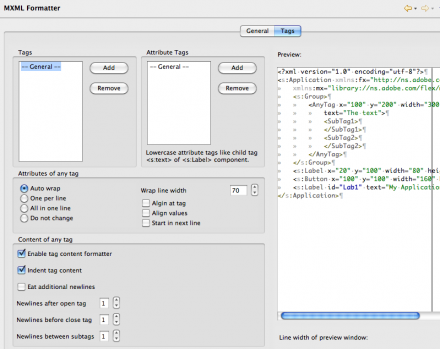
  • MXML Formatter (CMD/CTRL+Shift+F)
  • Quick Fixes in MXML (CMD/CTRL+1)
  • Organize Imports in MXML (CMD/CTRL+Shift+O)
  • Toggle Comment in MXML (CMD/CTRL+7)

Dependency Visualizer
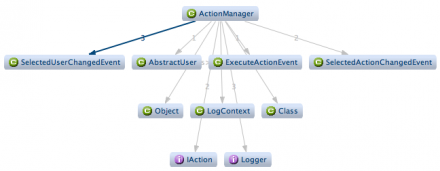

Detect design or dependency problems between types or packages at a glance with the Dependency Visualizer (Window > Show View > Type/Package Dependencies*).

Font Library Creator
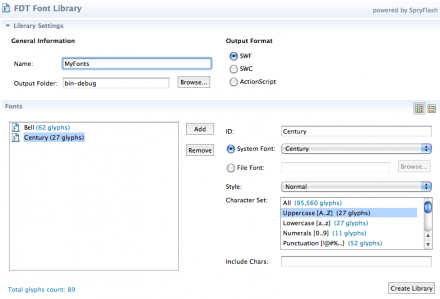

Create font library SWF or SWC files with just a few clicks using the new visual Font Library Creator. (New -> FDT Font Library*).

Note:
* Please reset your perspective (Window > Reset Perspective) if you don’t see the new items.

The new design

We know that FDT is not just technology. Coding comfort is more. So, apart from stunning features, we are happy to release FDT with a new brand, logo and visual. If you want to know more about the design process and see how the visual was developed, visit our collegues who created the new brand: britzpetermann.com

Download

Please notice FDT has a new license verification system, a new serial number activation is required for all users!

You will notice the new key is very long, it’s huge! Do not be frightened 😉 The good news you can simply copy and paste it to the new FDT registration dialog under the Help Menu.

You can grab the key here.

– Existing FDT4 users: If you have FDT4 already you can get the latest update from the menu item Help->Check for Updates

– New FDT4 users: Register here to receive the download instructions for FDT4 (RC1) and your Beta key. Enjoy!

Detailed report
For more information about this release, check the following report on bugs.powerflasher.com

FDT HTML Template

March 26, 2010 by Michael Plank

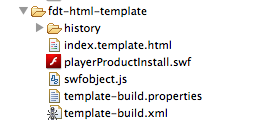
This is a short tutorial on how to use the FDT HTML Template to automatically generate the HTML wrapper files for your Flash and Flex projects.

Just download this ZIP file and watch the video tutorial:

Have fun,
Michael

TexFlex Winners

December 21, 2009 by Carlo Matic

And the winners are…

We’re happy to announce that Billy White won the FDT raffle on this years TexFlex. Welcome aboard, feel free to share your thoughts with us 🙂

FDT 3.1 RELEASED!!

September 2, 2008 by Carlo Matic

Hi folks,

we have fixed the few bugs, tested it a thousand times and now we have done it: we released the new 3.1 version of FDT!!!!

You can download the new installer now from our website. There are really some nice new features. Also we fixed a lot of things you reported, so thank you for that!! Here are the additional features of the new version:

  • Shipped Flex SDK 3.1
  • Default Source Folder is created with a new project
  • You can now define a “Standard Output Folder” per project, where generated SWF files from the launcher are generated by default
  • FDT Intro Contribution
  • FDT Cheat Sheets
  • AIR Debug Launcher as SWF Viewer
  • AIR Release Launcher
  • SWC Outline view
  • QuickTrace (Ctrl+0/Command+0)
  • Launchers can now be started by selecting an editor or a file and pressing “Run” or “Debug”
  • New Launch Shortcut for AS3 Libraries (Run Project as AS3 Library)
  • User Documentation is updated for FDT 3.1
  • Better sorting of the autocompletion proposals
  • Better autocompletion behaviour after “new”, “extends” and “implements”

Here you can find a complete buglist that we fixed in this version: buglist

Check it out and tell us what you think!!

Cheers,

Frank

FDT Standalone!! Version 3.1 in Beta Release

July 23, 2008 by Carlo Matic

Hi Folks,

today we released the new Beta Version of FDT, Version 3.1.0.0001. The following features are implemented in this version:

– Shipped Flex SDK (3.0.477)
– FDT Intro Contribution
– FDT Cheat Sheets
– AIR Debug Launcher as SWF Viewer
– AIR Release Launcher
– SWC Outline view
– QuickTrace (Ctrl+0/Command+0)

It is a free update for all our customers. For us, this is huge!! We are killing almost all difficulties that people had with the installation and setup-process and at the same time, are delivering a bigger AIR development support.

We are keen to get your feedback and hope this version will find your acknowledgment. Here you find your downloadable version:

Mac: http://fdt.powerflasher.com/update_beta/installer/FDTMacInstall.zip

Windows: http://fdt.powerflasher.com/update_beta/installer/FDTInstall.exe

so, tell us what you think,

best,

Frank
Product Manager FDT 3

The Actionscript Conference – Singapore

July 14, 2008 by Carlo Matic

Hi all,

after our online presentation of FDT at Flex User Group Singapore last week, organizer Hu Shunjie invited us to “The Actionscript Conference” (http://theactionscriptconference.com) , the first edition of a 2 day conference in Singapore, organized by the FUG Singapore.

We are very happy and will support this young conference where we can. We think it is a good opportunity to say “hallo” to South East Asia and meet new cool people on the other side of the globe.

So we are looking forward to that event and keep you up to date.

Cheers,
Frank

Coding AIR with FDT

October 23, 2007 by FDT Team

Update:

Please note that developing AIR applications with FDT 3 is very easy now. Simply create a launcher for viewing and debugging your application and one launcher to release it as .air file. To create an AIR debug launch configuration select your Document Class in the Flash Explorer and then open the Run Dialog (Run > Open Run Dialog…). Double click “FDT AS3 Application “ to create a new launch configuration. After that select the “Start” tab and choose “AIR Debug Launcher” as viewer.
Press the “Run“ button to compile and launch your AIR application. FDT automatically generates a default application XML file into your output folder.
To release and package your AIR application open the Run Dialog and double click “FDT AIR Application Release” and configure the settings on the right-hand side.
see: http://fdt.powerflasher.com/blog/?p=94

Please note that developing AIR applications with FDT 3 is very easy now. Simply create a launcher for viewing and debugging your application and one launcher to release it as .air file. To create an AIR debug launch configuration select your Document Class in the Flash Explorer and then open the Run Dialog (Run > Open Run Dialog…). Double click “FDT AS3 Application “ to create a new launch configuration. After that select the “Start” tab and choose “AIR Debug Launcher” as viewer.

Press the “Run“ button to compile and launch your AIR application. FDT automatically generates a default application XML file into your output folder.
To release and package your AIR application open the Run Dialog and double click “FDT AIR Application Release” and configure the settings on the right-hand side. See new post: http://fdt.powerflasher.com/blog/?p=94

Previous Post:

On October 1, 2007 Adobe released the beta 2 version of AIR (Adobe Integrated Runtime), formerly known as Apollo.
As a cross-operating system runtime AIR provides developers with the possibility to deploy RIAs to the desktop. This is very promising regarding the users interaction with the web because it provides a faster access to related data by using native desktop applications. On top of this, AIR applications can have a great look and feel by using customized windows.
All you need to do if you want to build those cool things is to download the Runtime, which is required to run any Adobe AIR application and to also download the Flex 3 SDK. The latter includes as well the AIR SDK as the AIR compiler, the AIR debug launcher and the AIR packager. These tools can be used together with ANT to map the whole AIR workflow.
To distribute AIR applications means to pack the required files like swfs, assets and the application descriptor file. These packages are used by the runtime environment, which should be installed at first, to make sure that all AIR applications will work.
Nico Zimmerman promised that there will be an add-on for FDT to support the AIR workflow with which it will be much easier to develop AIR applications.
Now, let’s take a closer look at the current workflow and let’s build a “hello world” Air application step by step.
<!–[endif]–>

  1. Download and install the Runtime (http://labs.adobe.com/downloads/air.html).
  2. Download the Flex 3 SDK (http://labs.adobe.com/technologies/flex/sdk/flex3sdk.html).<!–[endif]–>
  3. Now you can start your eclipse in the FDT perspective and add a new AS3 core library.
    • Window -> Preferences -> FDT -> Core Libraries -> AS3 Core Libraries -> Add…
    • 2. Choose Flex 3 SDK with AIR as Type, type in “Flex3_AIR” as Name and choose a path variable by clicking the “Browse…” button. If there is no variable linking to the Flex 3 SDK, click “New…”, type in “Flex3SDK_AIR” as Name and add the Path to your Flex 3 SDK folder. Press a few times OK, to get back to eclipse.
      Setting the classpath to Flex3 SDK
  4. Now you’re prepared to start with your first AIR application in FDT: create a New Flash Project with the Name “Hello World”. Choose Action Script 3 with your new core library (“Flex3_AIR”) as the project language and press “Finish”.
    Creating a new flash project
  5. Downloading this zip-file and copying the content to your project folder is the easiest way to go on. The zip-file contains a settings folder within an assets folder. The settings folder contains the application descriptor file which is essential for running AIR applications. This file contains parameters as well for the AIR application as for the first window. You have to customize these parameters as explained in the comments in the file.
    Note that the content tag and all tags marked “required” are very important to run the AIR application! Rename the application descriptor file like shown in this example: “-app.xml” (e.g. “powerflasher-app.xml”).
    The application-descriptor-file
  6. Add the “src” folder to the classpath and double-click the “Build-Air”file. The most important properties which you have to customize are marked with comments and are located at the top of the file.
    • Clean -> Deletes the built directories.
    • Build directories -> Creates directories. “Debug” contains the compiled swf for debugging, “build” contains the compiled swf for publishing and “publish” contains the final AIR file.
    • Compile for debuging -> Uses the mxml compiler with a special air parameter to compile the AIR swf. Instead of that you can use the amxml compiler as normal as you use the mxml compiler.
    • Compile for publishing -> Does the same as “Compile for debuging”.
    • Test application -> Uses the AIR debug launcher (ADL) to start the AIR application without packaging and installation. The ADL uses the application descriptor file to set up the window.
    • Package application -> Uses the AIR development tool (ADT) to package all required files to an AIR package.
    • Create certificate -> Uses the ADT to create a certificate which is required to sign and build the AIR package.
  7. Now you are ready to create the ActionScript Classnamed “HelloWorld”. The code should look like this:
    package
    {
        import flash.display.Sprite;
        import flash.text.TextField;
        import flash.text.TextFieldAutoSize;
    
        /**
         * @author Stephan Partzsch
         */
        public class HelloWorld extends Sprite
        {
    
            public function HelloWorld()
            {
                var textField:TextField = new TextField();
                textField.autoSize = TextFieldAutoSize.CENTER;
    
                textField.text = "Hello world!";
    
                textField.x = (stage.stageWidth - textField.width) / 2;
                textField.y = (stage.stageHeight - textField.height) / 2;
    
                this.addChild(textField);
            }
    
        }
    }
  8. Open the ANT view. You can find it here: Window -> Show View -> Other -> ANT. Drag the “Build_Air” file to the ANT view and double-click number 4 to test your application. Create a certificate with number 7 and than double-click number 6 to package your first AIR application.
    The ANT view in eclipse
  9. Finally you find HelloWorld.air in your project directory in the publish folder. Double-click it to install it on your desktop.<!–[endif]–>

Of course, you can also download this sample project right here.
That’s it and I hope I could demonstrate the workflow of AIR so that you can go on with developing ultra-cool AIR applications. 🙂

Stephan

Get FDT5