Up

Share your Content with the FDT Community

You want to join the FDT community? That’s easy, simply send us your news and be part of the FDT community page

[contact-form-7 id=”6383″ title=”Take Part”]

Linux builds have been tested on Ubuntu but should run on other distributions too.

With the download of FDT you accept our EULA

Featured

FDT Views/Editors follow Dark Theme

With this release FDT can easily switched to dark theme:Simply select the Dark theme and apply. The Dark theme is available since Eclipse 4.4 (Luna). Older versions of Eclipse (and FDT) does not support color themes of this form. The FDT views and editors will switch to their default dark color set: In case you […]

by FDT Team

FDT Newsletter

Subscribe to our FDT mailing list and get the latest news and vouchers! * indicates required Email Address * First Name Last Name

by FDT Team

FDT Milestone 10 – 10 years anniversary

We‘re happy to announce FDT Milestone 10! It‘s been 10 years since our first FDT release and a lot happened since last years Milestone 9. We went on to improve FDT and your IDE experience. Here is a list with our new key features: Ant Project Generator Dump launch configuration Library Project Template ActionScript refactorings […]

by FDT Team

Library Project Template

This new FDT release contains features to support a more fluent development of SWC libraries. The primary starting point to develop a library is the new Library Project Template for AIR or Web: This template creates an empty library project containing two source folders: All compilation units to include into the library should be placed […]

by FDT Team

Release 9.9 – Project groups

With this release the FDT Explorer can present projects in groups: Each Project Group is a set of workspace projects (i.e.: Working Set). Each project can be a member of one group and can not be shared among groups. Project Groups are logical structures shown inside FDT Explorer. Neither they represent nor they change the […]

by FDT Team

FDT Labs presents serverside Actionscript with AS3SX

September 8, 2011 by Carlo Matic

With FDT Labs we already carried out in the past a couple of projects that weren’t part of our origin roadmap. We implemented the HaXe support as well as a Dependency Visualizer and the Linux support. All 3 made it into the official FDT version.

Today we want to present you our new FDT Labs project. The project was created by one of our developers, Tobias Heidingsfeld, and is called AS3SX.

Tobias was often facing the problem of writing server side backends for AS3 and MXML applications for the Web, Desktop and Mobile. With AS3SX he created a piece of software that allows developers to write server side code in AS3 and giving them a framework that makes it fun and easy. Last but not least AS3SX also takes care of the the hosting.

Check out the project website under as3sx.fdt.powerflasher.com for more information and to download and test the project.

If you have any questions or feedback please leave us a comment or ask us via the feedback-form on the project website.

Please notice that this is a FDT Labs project which is comparable to an Alpha version. FDT Labs is our playground. We can’t guarantee that this project will ever leave the Labs section.

FDT haXe plugin public alpha version released

July 22, 2010 by Michael Plank

The community has been screaming for haXe support in FDT. We are thrilled today to announce the public alpha release of the FDT haXe plugin!

Developed in collaboration with Powerflasher and Influxis, the FDT haXe plugin provides developers a powerful tool for authoring the haXe multi-platform language. Our goal is to provide the best haXe coding experience and that it feels like coding in the AS2, AS3 or MXML editor of FDT: same shortcuts, same syntax coloring, same coding comfort.

Here’s a feature overview of the public alpha version:

  • Live error checking
  • Autocompletion (variables and functions)
  • Syntax coloring
  • Code editing features
  • Open Type
  • New Class/Interface/Enum wizards

You can follow our development progress on Twitter @FDThaXe

Watch the first live demo of the FDT haXe plugin I showed at Flash Camp Manchester in the recording from Adrian Parr starting at minute 38 here.

Getting started with the FDT haXe plugin (alpha version)

Installation

  1. Download the latest version of FDT4 Beta release here
  2. Go to http://haxe.org/download and download the installer for your OS.
  3. Run the installer.
  4. Start up FDT 4 and select Help > Install new Software
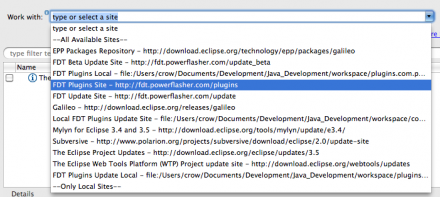
  5. Select the “FDT Plugins Site” update site. (If it is not included in your drop down menu, enter: http://fdt.powerflasher.com/plugins in the “Work with” text input and hit return)
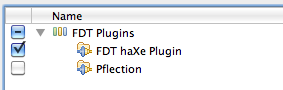
  6. Select “FDT haXe Plugin” from the plugin list, hit finish and follow the final installation steps.

Setting up the haXe Plugin

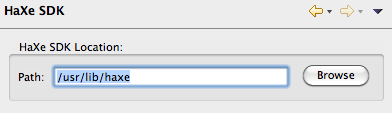
  1. First of all you need to configure the haXe SDK: Go to Preferences > haXe SDK and insert the haXe installation directory
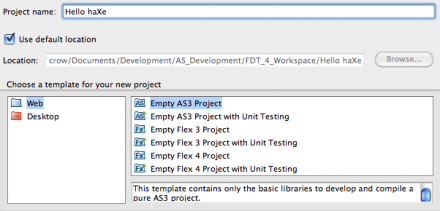
  2. Now create a new “Empty AS3 Project”, name it “Hello haXe” and click Finish
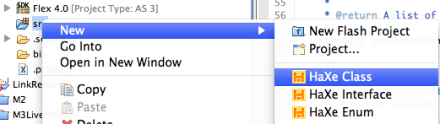
  3. Right click the src folder and select New > HaXe Class (if you don’t see it select Window > Reset Perspective from the Menu)
  4. Call the new Class “HelloHaxe” and click Finish
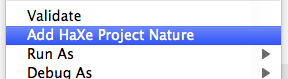
  5. Right click the Project and select “Add HaXe Project Nature”
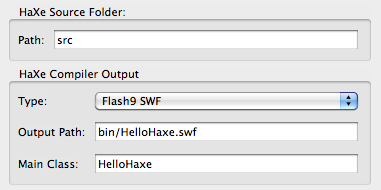
  6. Click Next and set the Type to “Flash9 SWF”, the output file to “bin/HelloHaxe.swf” and the Main Class to “HelloHaxe”
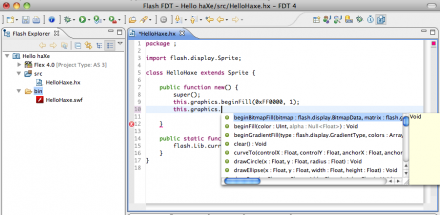
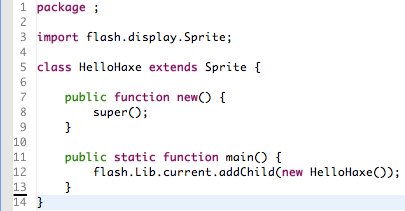
  7. Extend Sprite and add the constructor and the static main function. The final class should look like this:

That’s it, you’ve successfully set up your first FDT haXe Flash project!

Start Coding

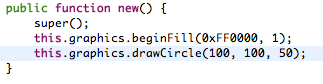
Start adding code in the constructor for example:

Please note, the SWF is compiled on every Save, no specific launch configuration is available yet. This is our first Alpha release, please bare with us !

For any feedback, feature requests, improvements, bugs and other issues we encourage you to use our community driven tracking website to make the haXe support in FDT the greatest ever.

We would also advice to subscribe to the haXe mailing list, it is a very active group with smart people and interesting topics.

On the behalf of the FDT Team and Influxis, I hope you are as excited as we are and enjoy the first available version of the FDT haXe plugin,

Michael Plank

FDT SDK Plugins announced!

June 1, 2010 by Michael Plank

We are very pleased to announce the “FDT SDK Plugins Program” – extend FDT with the features you ever wanted to have in your favourite Flash and Flex IDE yourself.

To get started, we’ve decided to write this post in Q&A style, with some of the main first questions, however I’m sure there will be more coming from you 🙂

Let’s get rolling !

Q: What is this SDK about?
A: Many developers have been asking how to implement their own FDT plugin. They would like to add framework supporting features, new helpful views, add their own Error/Warning markers or Autocompletions and Quick Fixes. With the FDT SDK plugins, we’d like to show you how to get started building your own FDT plugins and share them with the community.

Q: Is it hard to build a FDT plugin?
A:
Depends on the feature you have in mind. In general it’s very easy to build FDT plugins using the Eclipse RCP technology.

Q: How do I learn writing Eclipse FDT plugins?
A:
Our approach is to document the extension points of FDT and provide examples on how to write your own plugins and use these extension points. You will learn from other plugins, from our upcoming tutorial series and by getting in touch with us. We would love to work together with you guys turning your great ideas into reality.

Q: What programming language do I need to use?
A:
Java

Q: Are there any FDT Plugins already available?
A:
Yes, thanks to Maxim Zaks and his Pflection plugin, we are happy to present the first open source FDT community plugin. It’s a code metrics plugin displaying statistics about your Flash/Flex projects source code.

Q: Where can I download and install FDT plugins?
A:
We will host a central plugin repository. This is the Eclipse update site: http://fdt.powerflasher.com/plugins
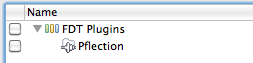
In FDT 4 M2 we have preinstalled this update site. If you don’t find it in your FDT instance just go to Help > Install new software and add the update site URL mentioned above. Select the plugins you want to install and click “Finish”, that’s it. Try it now and install the Pflection plugin right away.

Q: FDT 3 or FDT 4?
A:
The upcoming tutorials will all target FDT 4. Most of the plugins will work in FDT 3 as well. It’s up to the plugin developer to document the requirements of his plugin.

Stop answering questions, I’d like to get started!

Great, we will start with the first tutorial: “Your first FDT plugin”! It consists of 3 parts and will guide you through the steps of building your first FDT plugin that extends FDT with Editor Templates:

  1. Setting up the development environment
  2. Developing the plugin
  3. Deploying your plugin

I’m looking forward to your feedback, ideas, questions, thoughts and of course your plugins!

@Michael_Plank and the FDT Team

Get FDT5